Introduction
Microsoft Fabric’s lakehouse architecture provides a powerful foundation for storing and processing data at scale. One of the key capabilities is accessing files stored in the lakehouse directly from Fabric notebooks using both pandas and PySpark. This approach allows data professionals to seamlessly work with various file formats while leveraging the distributed computing power of Spark when needed.
In this guide, we’ll walk through the process of accessing Excel files stored in a Fabric lakehouse using a notebook, demonstrating how to read the data with pandas and convert it to a Spark DataFrame for further processing.
Prerequisites
- Access to Microsoft Fabric workspace
- A lakehouse with files stored in the Files section
- Basic knowledge of Python and pandas
- Understanding of Spark DataFrames
For the latest updated information, please refer to the official Microsoft Fabric documentation.
Step 1: Navigate to Your Lakehouse

Start by navigating to your Microsoft Fabric workspace where you can see your lakehouse listed among other workspace items. In this example, we can see “LH_REDSHIFT” lakehouse highlighted in the workspace.
Step 2: Access Your Files in the Lakehouse
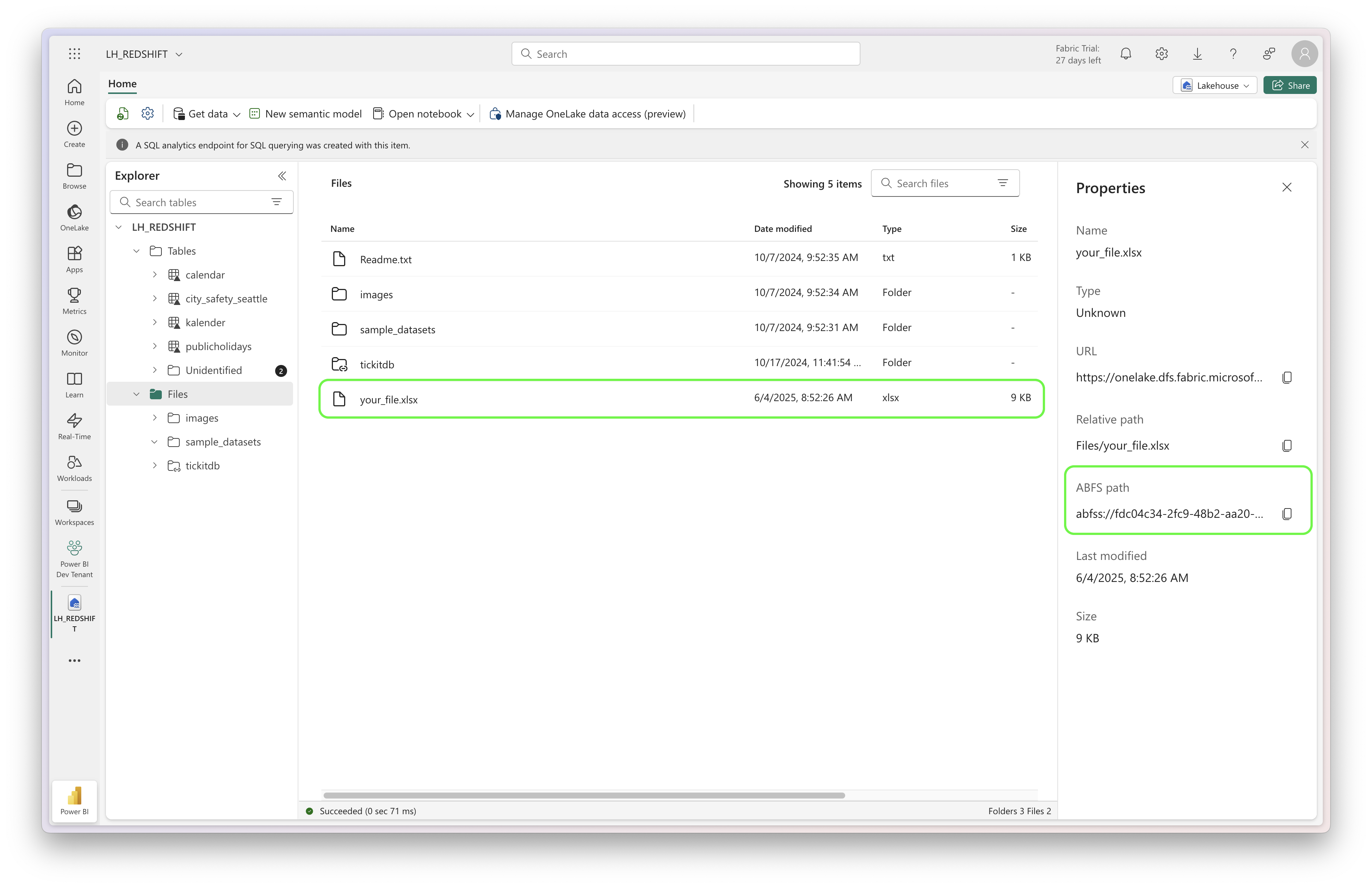
Once inside your lakehouse, navigate to the Files section where you can see all your uploaded files. To view the file properties, click the three dots on the file and select “Properties”. The Properties panel will then show the ABFS path (like “your_file.xlsx” in this example), which we’ll use in our notebook code.
Step 3: Define Your File Location and Path
In your Fabric notebook, start by defining the lakehouse path and the specific file you want to access:
import pandas as pd
from pyspark.sql import SparkSession

# Define lakehouse path and file location
lakehouse_abfss = "abfss://[workspace-id]@onelake.dfs.fabric.microsoft.com/[lakehouse-id]"
file_location = "Files/your_file.xlsx"

# Combine to create full path
excel_path = f"{lakehouse_abfss}/{file_location}"
Step 4: Read the File with Pandas
Use pandas to read the Excel file directly from the lakehouse:
# Read Excel file with pandas
pandas_df = pd.read_excel(excel_path)
This approach is particularly useful for smaller files or when you need pandas-specific functionality for data manipulation.
Step 5: Convert to Spark DataFrame
For larger datasets or when you need distributed processing capabilities, convert the pandas DataFrame to a Spark DataFrame:
# Convert to Spark DataFrame
spark_df = spark.createDataFrame(pandas_df)

# Display the result
spark_df.show()
Step 6: Verify Your Results
The show() method will display the first 20 rows of your DataFrame, allowing you to verify that the data was loaded correctly from the lakehouse.
Alternative Approaches
For Excel files specifically, the pandas approach is the most straightforward since Spark doesn’t have native Excel support. However, you can also work with other file formats directly with Spark:
# For CSV files
spark_df = spark.read.option("header", "true").csv(f"{lakehouse_abfss}/Files/your_file.csv")

# For Parquet files
spark_df = spark.read.parquet(f"{lakehouse_abfss}/Files/your_file.parquet")

# For JSON files
spark_df = spark.read.json(f"{lakehouse_abfss}/Files/your_file.json")
Note: For Excel files (.xlsx), using pandas with pd.read_excel() followed by conversion to Spark DataFrame (as shown in the main example) is the recommended approach since Spark doesn’t natively support Excel format.
Complete Code Example
Here’s the complete code block that you can copy and paste into your Fabric notebook:
import pandas as pd
from pyspark.sql import SparkSession

# Define lakehouse path and file location
lakehouse_abfss = "abfss://[workspace-id]@onelake.dfs.fabric.microsoft.com/[lakehouse-id]"
file_location = "Files/your_file.xlsx"

# Combine to create full path
excel_path = f"{lakehouse_abfss}/{file_location}"

# Read Excel file with pandas
pandas_df = pd.read_excel(excel_path)

# Convert to Spark DataFrame
spark_df = spark.createDataFrame(pandas_df)

# Display the result
spark_df.show()

# Optional: Display basic information about the DataFrame
print(f"Number of rows: {spark_df.count()}")
print(f"Number of columns: {len(spark_df.columns)}")
print("Column names:", spark_df.columns)
Remember to:
- Replace
[workspace-id]and[lakehouse-id]with your actual lakehouse ABFSS path - Update the
file_locationto match your Excel file’s path in the lakehouse - Ensure your Excel file is uploaded to the Files section of your lakehouse
Conclusion
Accessing files in Microsoft Fabric lakehouse using notebooks provides a flexible and powerful way to work with your data. By combining the ABFSS path with standard pandas and PySpark operations, you can seamlessly read various file formats and leverage both local and distributed computing capabilities.
This approach is particularly valuable when working with mixed workloads where you need the convenience of pandas for data exploration and the scalability of Spark for larger processing tasks.
The integration between Fabric lakehouse and notebooks demonstrates the platform’s commitment to providing a unified analytics experience that scales from small data exploration to enterprise-level data processing.

 Snorre Glemmestad